Buildium Training - Ep. 5 Leases and Adding Tenants into Buildium
Visit apmhelp.com or email us at info@apmhelp.com to get support.
Hello everyone, and welcome back toAPM Help Academy. Today, we’re going to coveradding leases and tenants in Buildium.
Adding Multiple Tenants (Bulk Upload)
If you’re starting fresh or adding many tenants at once, useBuildium’s Import Data feature:
- Navigate toSettings > Import Data > Upload Data File > Tenants.
- Download and fill out theExcel template with tenant information.
- Important: The property must already exist in Buildium; otherwise, tenants cannot be uploaded.
This feature is most useful when starting with a new portfolio.
Adding a Lease (Individual Method)
There are several ways to add a lease, but a common and recommended approach is through theApplicants page:
Step 1: Approve the Applicant
- Go to the tenant profile of the applicant.
- Change the status to Approved.
This ensures the lease is properly tied to the applicant’s profile for quick access to their information.
Step 2: Move In / Create Lease
- Click Move In to start the lease creation process.
- Choose Signature Status:
- Signed – most common; indicates tenant has signed a lease.
- Unsigned – typically used if sending via Buildium’s DocuSign feature.
- Enter lease details:
- Start & End Date – defaults to one year, but can be modified.
- Additional tenants or co-signers – can be added here.
Step 3: Rent Setup
- Enter the monthly rent amount.
- Set the Next Due Date – when Buildium begins automatically posting charges.
Important Notes:
- If the lease starts mid-month:
- You can prorate the first month’s rent automatically.
- Optionally, add a one-time charge for the full first month if it’s due earlier.
- Buildium calculates prorated rent automatically based on the lease start date.
Step 4: Security Deposit & Recurring Charges
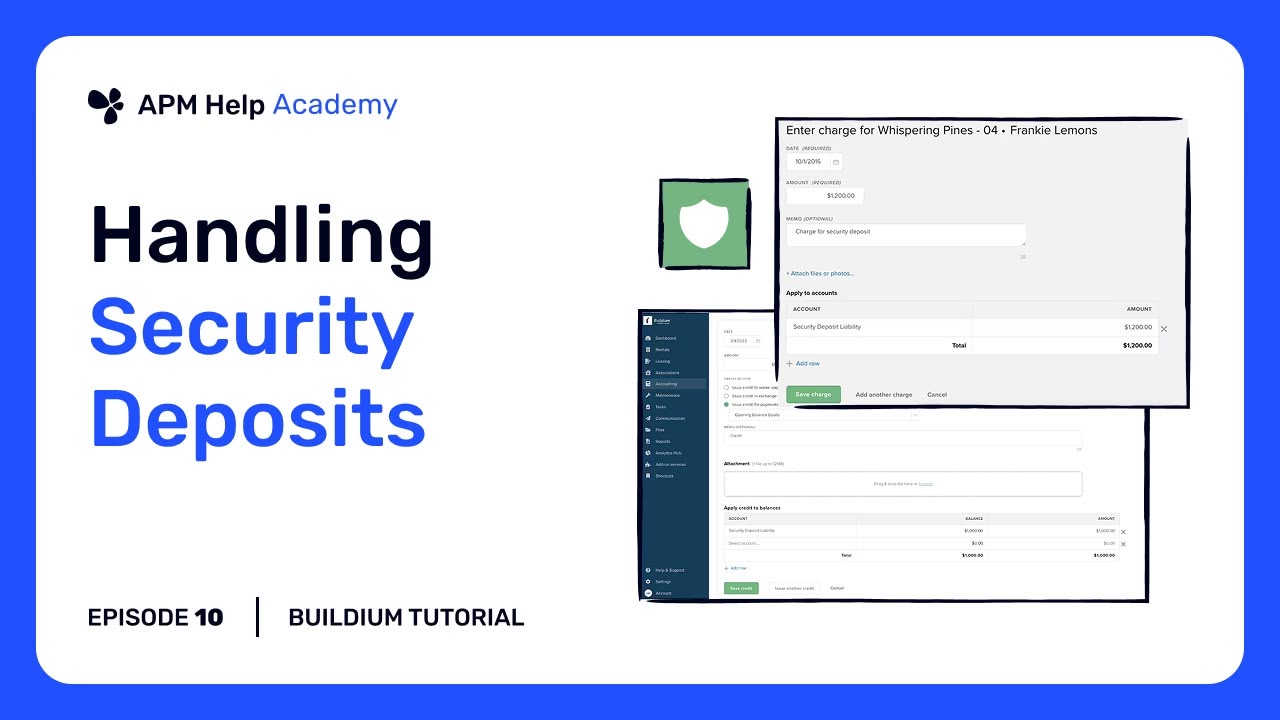
- Enter security deposit amount and due date (often aligned with lease start).
- Add any recurring charges (e.g., parking, resident benefits):
- If you want it to appear as part of rent in reports, use the split rent charge.
- Otherwise, use recurring charge for separate tracking.
- Set frequency (most commonly monthly).
- Add a memo – tenants can view this in their portal.
- Upload files (lease agreements, addendums, etc.).
Other Lease Entry Methods
- You can also add leases viaRentals > Rent Roll.
- Always link the lease to anexisting tenant or applicant profile to maintain accurate records.
Editing Leases
If you make a mistake, most lease details can be edited at any time:
- Rent Tab: Adjust amounts, recurring transactions, or start dates.
- Payment Settings: Update payment due date; correlates directly with late fee policies.
- Overrides: You can set specific late fee or prepayment policies for individual leases.
Note: Buildium does not currently provide a report for all prepayment or allocation overrides, so these must be managed carefully.
Key Takeaways
- Use Import Data for bulk tenant uploads; properties must exist first.
- Prefer creating leases via theApplicant profile to maintain proper linkage.
- Set Next Due Date correctly to avoid confusion with automatic rent charges.
- Entersecurity deposits, recurring charges, and fileswhen creating the lease.
- Most details can be edited later, but correct initial setup saves time and avoids mistakes.
Thanks for watching APM Help Academy! Don’t forget tolike and subscribe, and stay tuned for more tutorials. For additional help, visitapmhelp.com or contact us at info@apmhelp.com.